How to Run Multiple Dev Servers at Once Without Reopening Six Tabs
Start a web server, API, queue worker and asset watcher with one npm command, then save the daily stack in HackUtilities. Includes port-conflict recovery and shell-environment troubleshooting.
Martijn Smit 6 min read

To run multiple dev servers at once, put their startup commands behind one package.json script using a concurrent runner such as concurrently. Your web server, API, queue worker and asset watcher can then start from one command instead of four terminal tabs.
For a daily stack, I’d also save each process in a project workspace so you can inspect its status and stop it without hunting for the right tab.
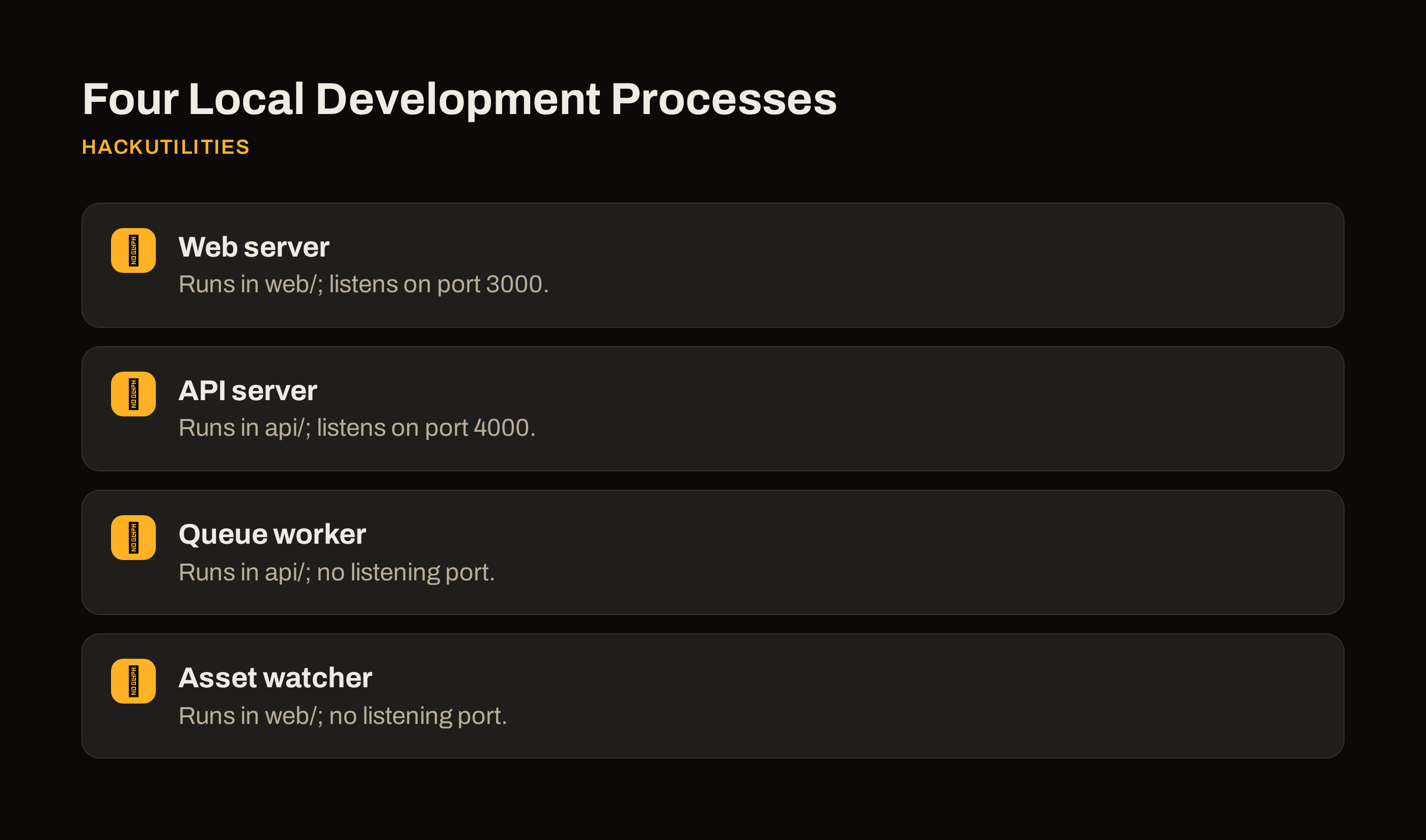
Map the four processes
Record where each process runs and how you’ll tell it is ready. Replace the example directories and bracketed entries with your repo’s existing scripts and readiness signals.
| Process | Working directory | Existing startup script | Port | Readiness signal |
|---|---|---|---|---|
| Web | web/ |
[web script] | 3000 | [page responds successfully] |
| API | api/ |
[API script] | 4000 | [health endpoint responds] |
| Queue worker | api/ |
[worker script] | None | [queue connection confirmed] |
| Asset watcher | web/ |
[watcher script] | None | [initial build completed] |
Workers and watchers usually don’t need listening ports. Web and API servers do, and two listeners cannot bind the same address and port. Set their ports explicitly in the project’s configuration.
This setup is for one developer’s local stack, not production orchestration, container deployment or hosting multiple production instances.
Launch the processes with one package script
Install the runner at the repo root:
npm install --save-dev concurrently
Merge this scripts block into your root package.json, replacing the bracketed script names. Keeping separate scripts lets you run one process while debugging.
{
 "scripts": {
 "dev:web": "npm --prefix web run [web-script]",
 "dev:api": "npm --prefix api run [api-script]",
 "dev:worker": "npm --prefix api run [worker-script]",
 "dev:assets": "npm --prefix web run [watcher-script]",
 "dev": "concurrently --kill-others --names web,api,worker,assets --prefix-colors cyan,green,yellow,magenta \"npm run dev:web\" \"npm run dev:api\" \"npm run dev:worker\" \"npm run dev:assets\""
 }
}
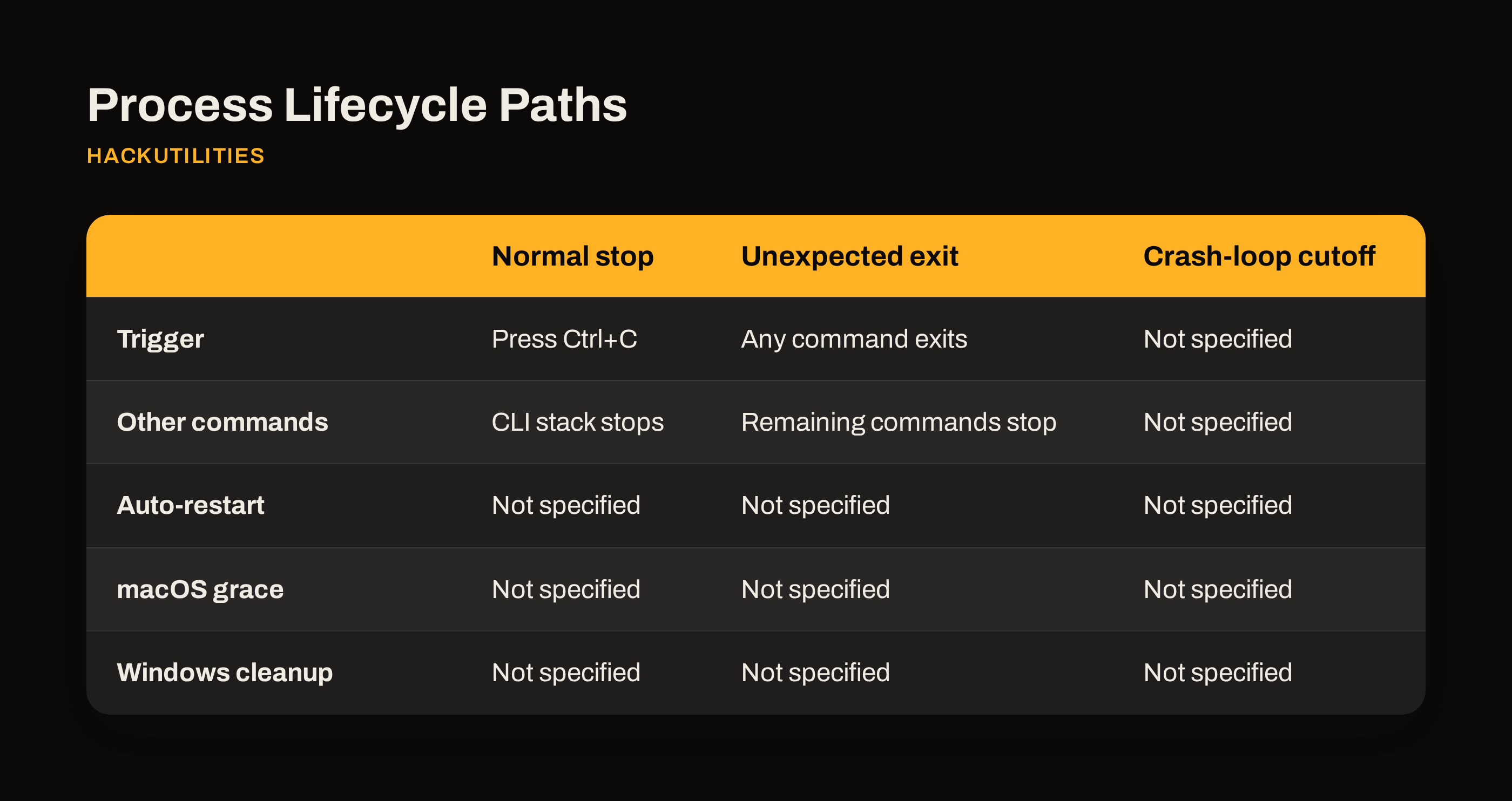
Run npm run dev. Output gets a name and color per process. --kill-others stops the remaining commands when any command exits, including a successful exit. That suits four long-running processes; a watcher that builds once and exits needs a different policy.
Keep port configuration in the existing web and API scripts, following each framework’s documentation. There is no universal PORT variable or port flag.
Joining commands with && waits for each to finish successfully before starting the next. Shell & can background commands in some shells, but does not provide portable group cleanup across macOS and Windows.
To stop the CLI stack, press Ctrl+C in the terminal running npm run dev. I have not tried to document exact cross-platform signal behavior for every framework here, because child-process cleanup can differ once a script shells out again. If a port stays occupied after exit, treat that as a project-specific issue and inspect the listener before restarting.
Save the daily routine in a project workspace
In HackUtilities, open the Projects section in the sidebar, click Add Project, then pick the repository folder. The project opens on its overview page. Project data stays in the app’s data folder, outside your repo.
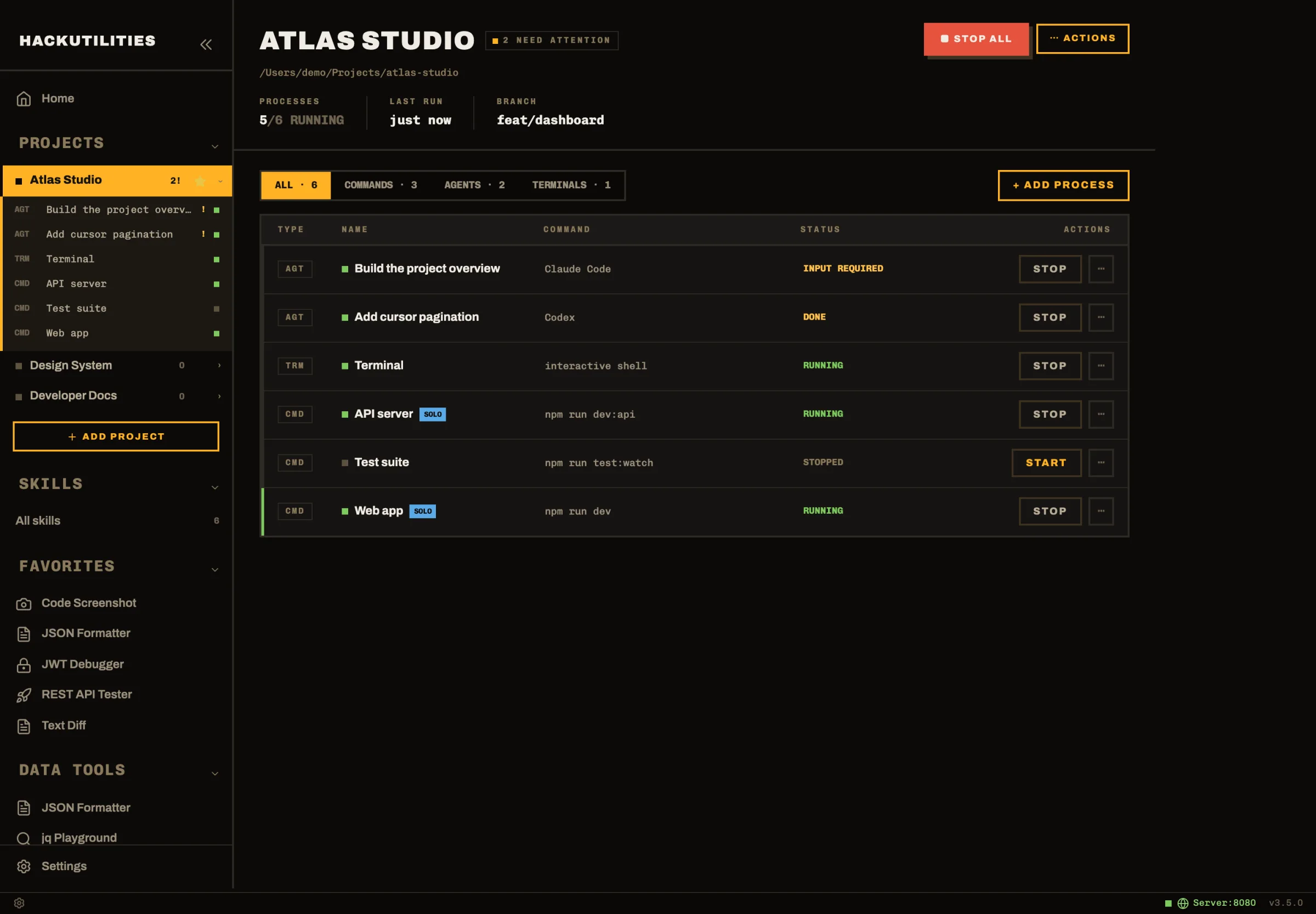
Open the project, then choose + ADD PROCESS → Command…. Fill in Name, Command and Working directory (optional, relative to project) using this map:
| Name | Command | Working directory |
|---|---|---|
| Web | npm run [web-script] |
web |
| API | npm run [api-script] |
api |
| Queue worker | npm run [worker-script] |
api |
| Asset watcher | npm run [watcher-script] |
web |
Put required launch-time variables in Environment variables, one KEY=value per line. Leave it empty if the script supplies everything. Tick Start with project, then click Add. Repeat for all four processes; don’t also add the aggregate npm run dev, which would launch duplicates.
▶ Start All starts trusted commands marked Start with project that aren’t already running. It leaves terminals and agents stopped. The notice under the header reports skipped commands; the process table shows status and row-level start/stop controls.
Locally created or edited commands are trusted immediately. Commands imported from solo.yml need your trust before running, and changed imports require review again. Read their command lines before approving them. See the Projects guide for these startup rules.
Fix commands that work only in your terminal
If a desktop-launched command reports command not found, compare its environment with your terminal’s. Your interactive shell may initialize a version manager or custom PATH entry that the saved command cannot see.
HackUtilities commands run through $SHELL -l -c "<command>" on macOS and cmd /C on Windows. A macOS login shell does not necessarily read your interactive-shell configuration; Windows has different initialization behavior.
I’d check in this order:
- Inspect the saved command for a typo or an alias defined only in your interactive shell.
- Verify that its executable is available through the launch shell above.
- If it is missing, configure PATH or the required environment in the appropriate shell startup file or the command’s Environment variables.
Read process state and resolve port conflicts safely
Unlike the CLI’s group-exit policy, HackUtilities’ per-command Auto-restart on crash can restart an unexpectedly exited command with exponential backoff. Five or more auto-restarts within 60 seconds stops retries until you start it manually.
HackUtilities shows Starting…, Running, Stopping…, Stopped, Exited and Failed to start. Reopen an exited process to read its retained output before retrying.
■ Stop All stops commands, terminals and agents. On macOS, it sends SIGTERM to the process group, then SIGKILL after a three-second grace if needed. Windows uses taskkill /T, then /T /F. Quitting the app also stops processes it started, but a grandchild using setsid() can escape the process group and survive cleanup. These lifecycle details matter if a port remains occupied.
For EADDRINUSE:
- On macOS, run
lsof -nP -iTCP:3000 -sTCP:LISTENand read theCOMMANDandPIDcolumns. Replace3000with the reported port. On Windows, runresmon, open Network, expand Listening Ports, and find the matching Port; read its Image and PID. - Check the PID and command to determine whether the listener belongs to this stack, another project or an earlier run.
- Stop it through its owning terminal or app first. Don’t kill every Node process or default to
kill -9. - Retry startup. If the conflict remains, inspect the listener again for an orphaned child.
Gate tests on readiness
A running process may still be compiling assets or connecting to its database. Starting all four together establishes neither dependency order nor readiness. Gate tests on successful responses from the web page on port 3000 and the API health endpoint on port 4000, using the paths from your process map.
Use a readiness helper here instead of a fixed sleep. Wait for both the web page on http://127.0.0.1:3000 and the API health endpoint on http://127.0.0.1:4000/health, give it a bounded timeout, then run your tests and let that wrapper own cleanup. I have not hard-coded a one-size-fits-all command because the exact test runner, endpoint paths and shutdown behavior vary by stack.
The test command should own the processes it starts and stop them afterward. Run it with the daily stack stopped to avoid duplicate listeners. HackUtilities’ Start All does not provide this readiness gate.
Finally, try the setup from a fresh checkout with your usual terminal tabs closed. Record missing dependencies and machine-specific prerequisites in the repo’s development notes.
Try the four-process project in the 14-day HackUtilities trial. There’s no account and no card. If a command behaves differently from your terminal, send it to me and I’ll take a look.