Tauri App Icon Generator: Build src-tauri/icons Locally
Generate a Tauri-ready icons folder locally from one image in HackUtilities. This walkthrough covers the fastest path, the actual outputs, and the crop and upscale warnings to check before shipping.
 Martijn Smit
4 min read
Exporting every app icon size by hand is extra work when the artwork is already finished. If you need a tauri app icon generator, HackUtilities’ App Icon Generator produces the full set from one image locally, with no network requests.
Start with one image
Use a square image at least 1024 × 1024px. App Icon Generator accepts PNG, JPG/JPEG, and WebP, so use your highest-resolution original rather than a small export from your website.
If your logo is SVG, open Sidebar → Images & Media → SVG Toolkit and drop in the file or paste its markup. Select Rasterize to PNG, select 1024px, and deselect the default 256px and 512px widths if you only need the master. Click Choose output folder…, then Rasterize N sizes. Rasterization runs locally.
The width control preserves the SVG’s aspect ratio: a rectangular SVG produces a rectangular PNG. Make the source canvas square before rasterizing to get a 1024 × 1024px image.
Generate the Tauri set
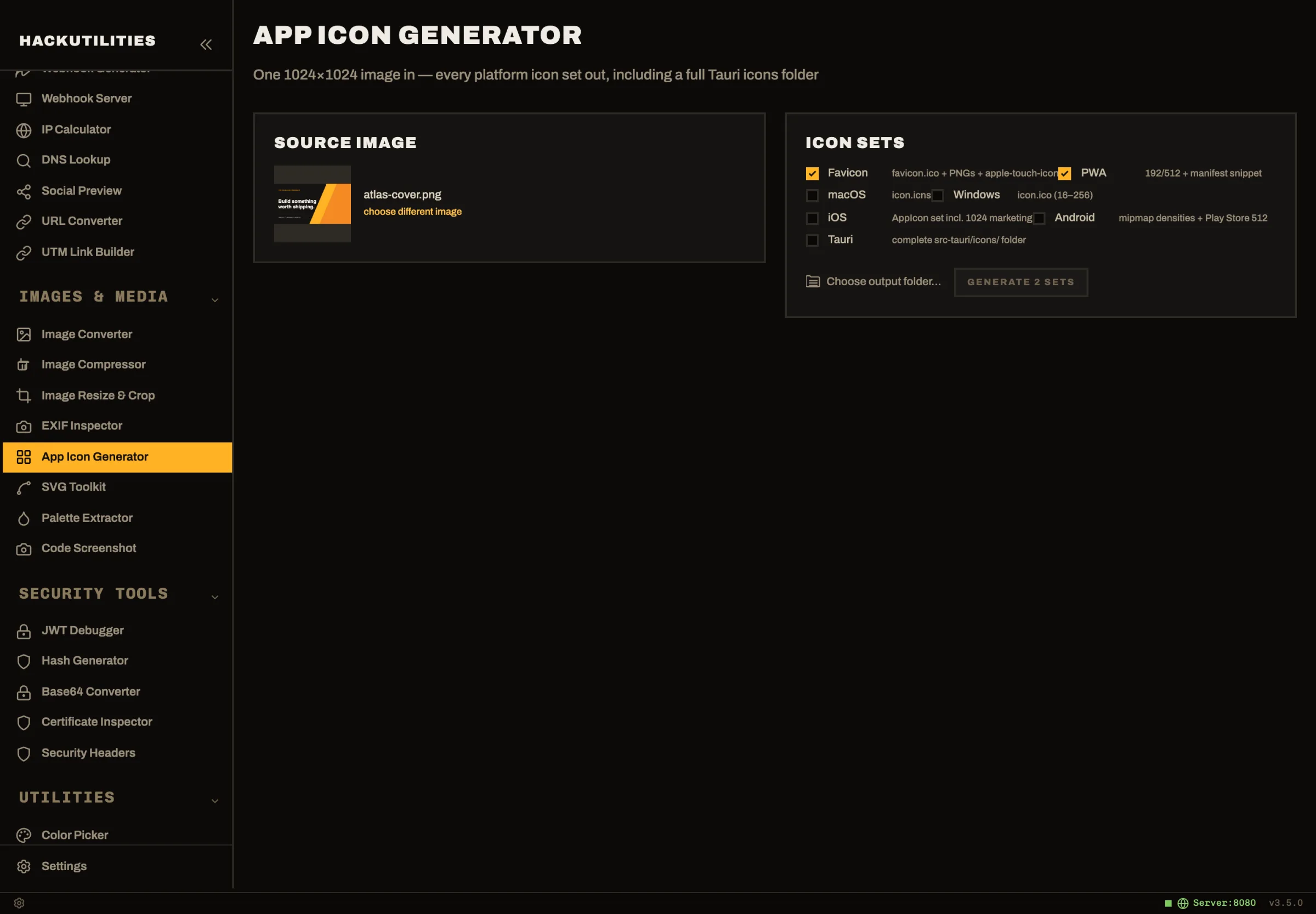
Open Sidebar → Images & Media → App Icon Generator and drop in your prepared image. Under Icon sets, tick Tauri. Favicon and PWA are selected by default; untick them if you only need Tauri assets.
Click Choose output folder… and pick a destination. This is required before generating. Then click Generate N sets; the number reflects how many sets you selected. The app’s native backend generates all selected sets in one pass.
Check the output
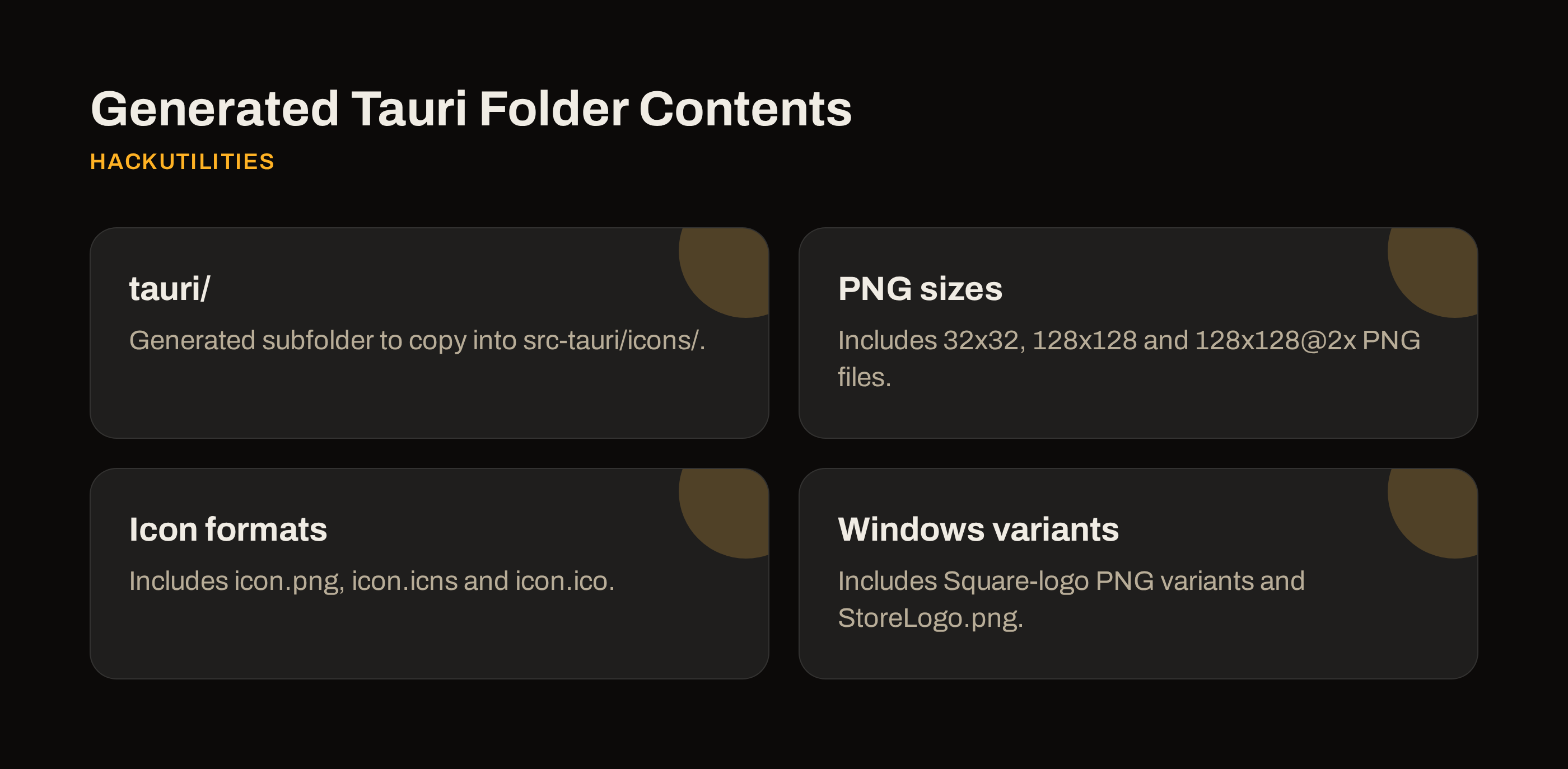
Each selected set gets its own named subfolder in your chosen output folder. Copy the contents of the generated tauri/ subfolder into your project’s src-tauri/icons/ directory.
The core output includes the 32x32, 128x128 and 128x128@2x PNG sizes, icon.png, icon.icns and icon.ico, plus Windows Square-logo PNG variants and StoreLogo.png. This is not an exhaustive filename list.
Check that HackUtilities shows a generated-file count, then use Show in Finder to confirm the output contains tauri/ with the assets listed above. Before copying them into your project, resolve any crop or upscale warning using the guidance below.
Read the warnings
“center-cropped to square” means the generator removes the outer edges of a non-square image. Keep the result if only spare background gets cut away. If the crop clips lettering or removes margins the logo needs, fix the source canvas and generate again.
“large icons will be upscaled” means the source is below 1024px. The generator scales it to a 1024px master using Lanczos3 resampling, but enlarging pixels cannot recover missing detail. A small source may be enough for a throwaway prototype; inspect the larger outputs for softened edges before using them as release assets.
Before shipping: Resolve an upscale warning by returning to higher-resolution artwork or rasterizing the original SVG again. Resizing the same small PNG to 1024px first may remove the warning, but it won’t improve the detail.
Reuse the artwork
If your app also has a landing page, docs site or web shell, select Favicon and PWA alongside Tauri to generate those assets from the same source.
The favicon set includes favicon.ico with 16/32/48px sizes, favicon-16x16.png, favicon-32x32.png and a 180px apple-touch-icon.png. Copy the HTML head snippet into your site’s head. The PWA set supplies icon-192.png and icon-512.png, with a copyable Web-app manifest snippet for the manifest’s icons entries.
I’d check the smallest icons at their actual display size. If fine lettering becomes unreadable or gaps between shapes disappear, stop regenerating the same source and draw a simplified small-size version by hand. More exports won’t make those details legible.
If the logo reads clearly but looks cramped or off-centre on a particular platform, make a separate asset with different padding or composition. Keep the generated files that work and replace the affected assets manually rather than forcing one master to fit every platform.
I’d use this when the artwork is ready and I need matching icons for the app and its website. Download the 14-day free trial to generate your app’s tauri/, favicon/ and pwa/ folders locally from one image.